6 October 2026
Overlays: a sample laid under a track
RideComposer 2.0.14: lay a sample under a track, as in MixMeister. It carries on through the transition, with its own volume.
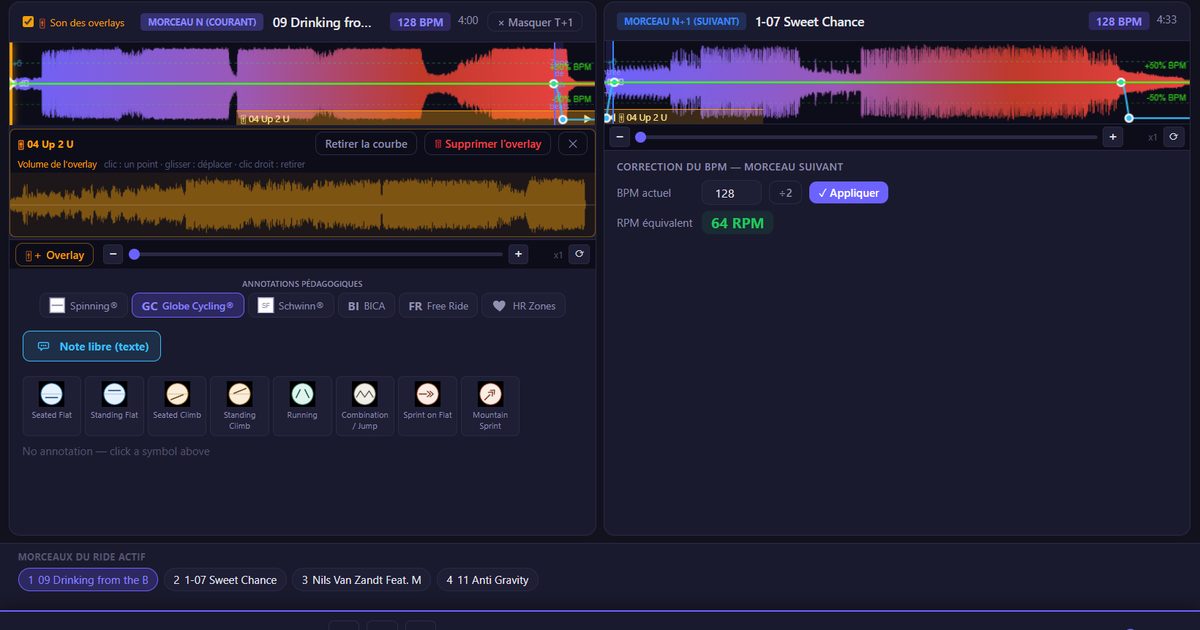
If you have worked with MixMeister, you know the move: a sample laid under a track, at a precise moment, playing over the music. In MixMeister it is called “1a”: sample number 1 of track 1.
Instructors moving to RideComposer asked for it. And the use they describe is always the same: masking a transition that does not work. Two tracks whose join sounds harsh; you lay a sample on the end of the first, it carries on over the start of the second, and the seam is gone.
Since version 2.0.14, RideComposer does it.
What an overlay does, and does not do
An overlay is a third sound source, independent of the two tracks crossing each other:
- it starts at the moment you placed it on its track;
- it carries on through the transition, and over the start of the next track, untouched by the fade;
- it has its own volume: the music does not duck under it by itself;
- it plays at its original speed and level;
- it only stops when you stop playback, and picks up at the exact spot when you resume.
Start playback in the middle of the class, straight on the second track: the tail of an overlay laid on the first one still plays, as on a continuous timeline.
Laying it down
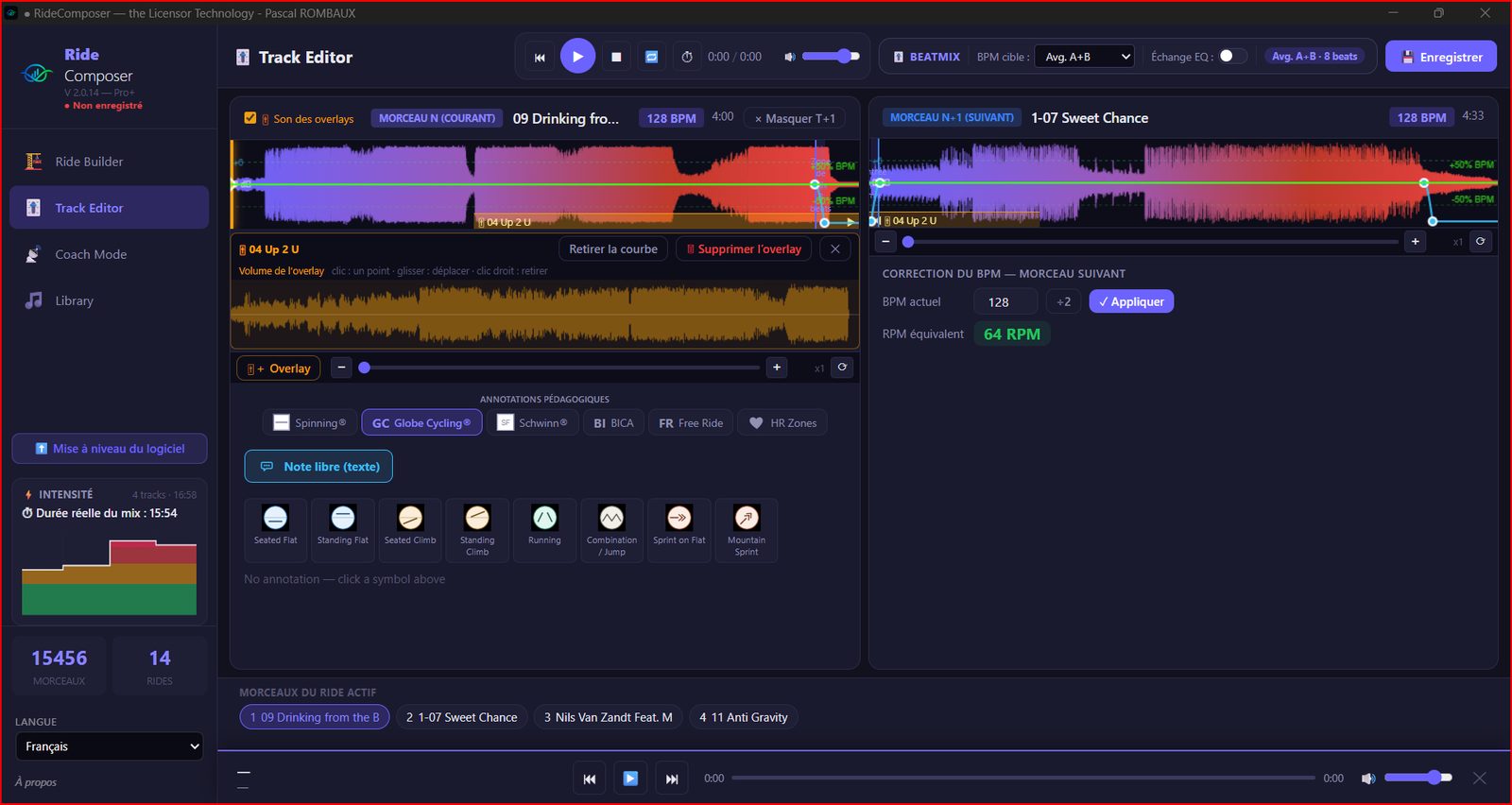
In the Track Editor, the “🎚+ Overlay” button, left of the zoom bar, opens a window: search your library, or pick a file from disk. The sample is laid on the edited track, at the playhead. If playback is running, it starts right away — MixMeister's button, at moment T.
The overlays of an imported MixMeister project are kept as they are, where they were.
Seeing it, moving it, setting it
The overlay shows as an orange band at the bottom of the waveform. If it spills over the next track, it also shows on the right-hand panel, with a ▶ arrow. You drag it from either panel, freely, to the second.
A click on the band opens, under the waveform, the whole sample with its volume: a click adds a point, dragging moves it, a right-click removes it. At first there is no curve — the sample plays at its own level. A cursor shows where playback is in the sample while you adjust.
The “Overlay sound” checkbox, left of the current track badge, mutes or restores all overlays at once. It is the simplest way to judge your transition: with, then without.
And to remove it: “🗑 Remove overlay”, in the same band. Nothing is lost until the ride is saved.
In the same version
2.0.14 also fixes transition points once and for all: computed when entering the Track Editor or Coach Mode, then saved with the ride. They no longer move, and the remaining time shown in Coach Mode is exact.
Version 2.0.14 is available on ridecomposer.com. Overlays are described in §7.11 of the user manual, updated in all nine languages.