8 September 2026
"Can you send me your playlist?" — the track list as a PDF
The question every instructor hears after a good class. Since 1.4.1, a ride's track list saves as a PDF — to give away, not to keep.
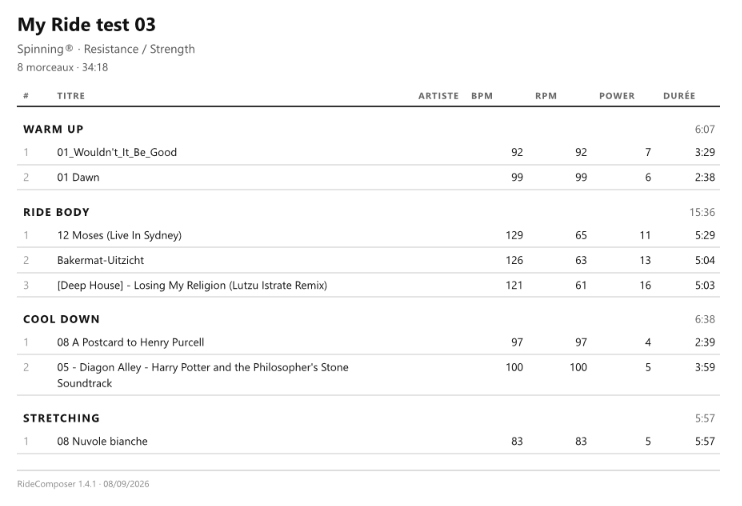
End of class, at an event. The bikes stop, people climb off, and two or three riders come over with the same question:
"What was that track in the last block? Can you send me your playlist?"
Until now you had to promise to send it later, find the ride that evening, and retype the titles by hand into a message. Most of the time, it never happened.
As of version 1.4.1, a Print button turns the whole list into a PDF. You send it the same evening, or you print it before you leave.
It is not for you
Worth being clear about: this sheet is not made for the instructor.
During the class you have Coach Mode — on an external screen if you want one. Everything is there: the current track, the next one, elapsed time, techniques at the right moment. You need no paper at all, and that is exactly as it should be.
The PDF is for other people. For the ones who ask what you played.
Two very concrete situations
At an event. A Master Instructor teaches in front of a room that does not know them. The musical composition lands — it is often the first thing people remember. Afterwards they come and ask for the list. It can be handed over on the spot, complete, with the BPMs. It is a gift that costs nothing and that people remember.
In training. A trainer uses three or four rides over a day. Students leave with notes, but rarely with the exact titles. Giving them the list of the rides used means giving them something to work on at home, on the same material.
In both cases the value is not in the file: it is in being able to say yes straight away.
What we leave off it — and why
The question came up: should the teaching annotations placed on each track be printed too, with their timings?
No. And the reason lies with whoever receives the sheet.
A rider wants to know what you played. They do not want — and often would not know what to do with — the exact placement of your jumps or your seated climbs. That work is yours: it is your pedagogy, your construction, the thing that separates your class from the same playlist ridden by somebody else.
So the sheet answers one question: what was the music? Title, artist, BPM, RPM, power, duration, by zone. The rest stays yours.
Available on every plan
Solo included, and deliberately so.
RideComposer does reserve certain features for the Pro plan — MixMeister import, exporting a ride to a USB stick. Handing your track list to somebody who asks for it does not belong in that category. It is a courtesy, and incidentally it is how you get known.
Note also that this is not an export. An export moves your audio files from one machine to another. Here no music leaves: you give a list, not tracks.
In the image at the top of this article the Artist column is empty: those particular files carry no artist tag. RideComposer does not invent what it does not know — it leaves the cell blank rather than writing something false. If your tags are clean, your sheet will be too.
What we refuse to let into it
Here is the invisible part.
The titles and artist names that get printed do not come from us: they come from the tags inside your MP3 files. That is, from data nobody wrote or checked — a file downloaded eight years ago can contain anything at all in its "title" field. And this sheet is built to be sent to somebody else, which makes the question rather less theoretical.
The easy way to print would have been to let the interface build the page and hand it over to be printed as is. That is precisely what we did not do. The interface sends values — a title, an artist, a number — and the printing side builds the page itself and neutralises anything that might behave like code. As a second barrier, the window that produces the PDF is simply not allowed to execute anything.
An automated test requires that a track named <script>alert(1)</script> come out printed in plain letters on the sheet, and nothing more.
Where it is
In the Ride Builder, under the Rides menu — which now gathers My Rides, Import ride and Print.
Open a ride, click, choose where to save it. Next time somebody asks for your playlist, you will say yes.